02-03-02 Beckhoff External
1. Create Pandora Beckhoff ADS Connection
Calling the KXGEM library using Structured Text (ST) programming in TwinCAT 3 to implement SECS/GEM function interfaces — the entire development process is completed purely within the PLC code. First, at least one TwinCAT bridge service container must be configured in the Pandora Box and pointed to the corresponding TwinCAT PLC. This container service serves as the actual implementation for calling the SECS/GEM API from the TwinCAT PLC via ST programming. Once configured, no further modifications to the Pandora Box program are required. The TwinCAT runtime environment supports Windows 7/8/9/10/11 and WinCE.
The following procedures describe how to add and configure a bridge service via the Pandora client interface:
1.1 Delete all created container object instances.
ℹ️ Depending on the license of the current Pandora Box, typically only one container object is allowed to be created per Pandora Box, and accordingly one SECS/GEM instance object is created. If the Pandora Box you are using needs to map multiple hardware modules (PLC controllers) to their respective independent SECS/GEM instances, please contact sales@kxware.com to install a SECS/GEM license that supports multiple instances.
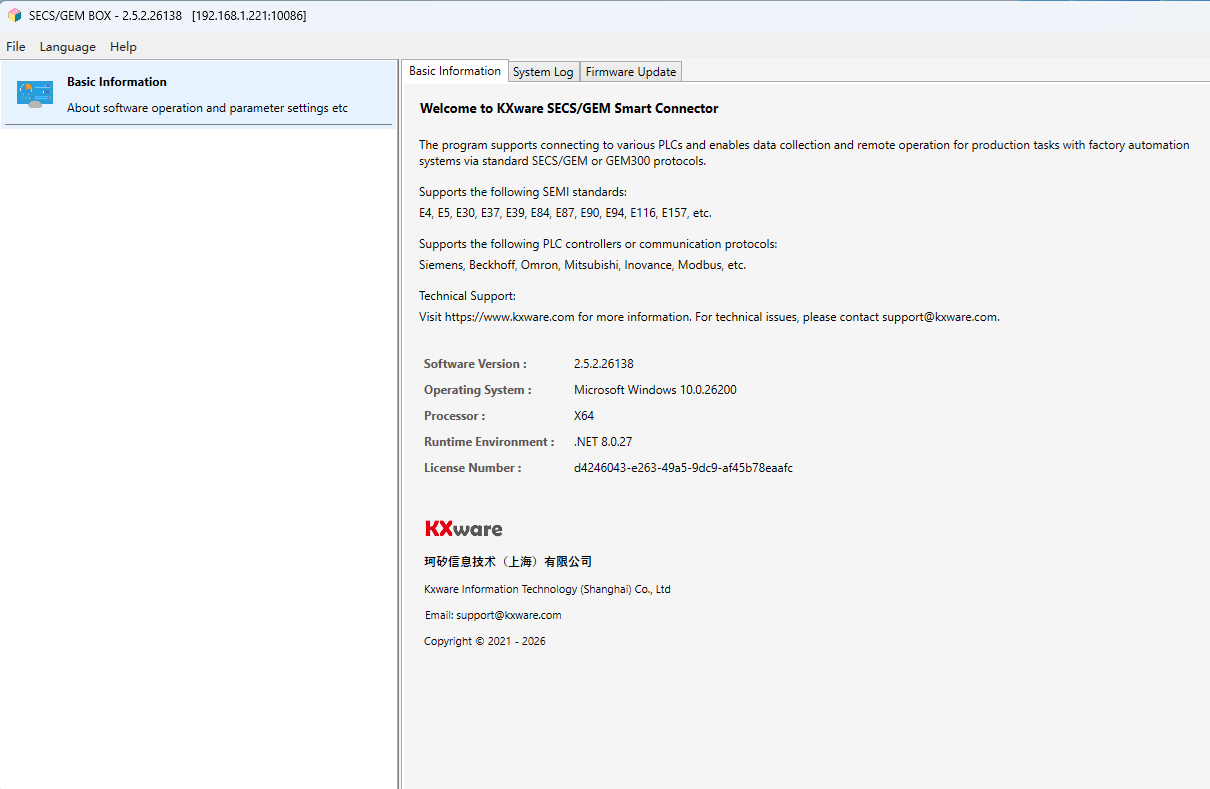
1.2 Add a Beckhoff ADS container object
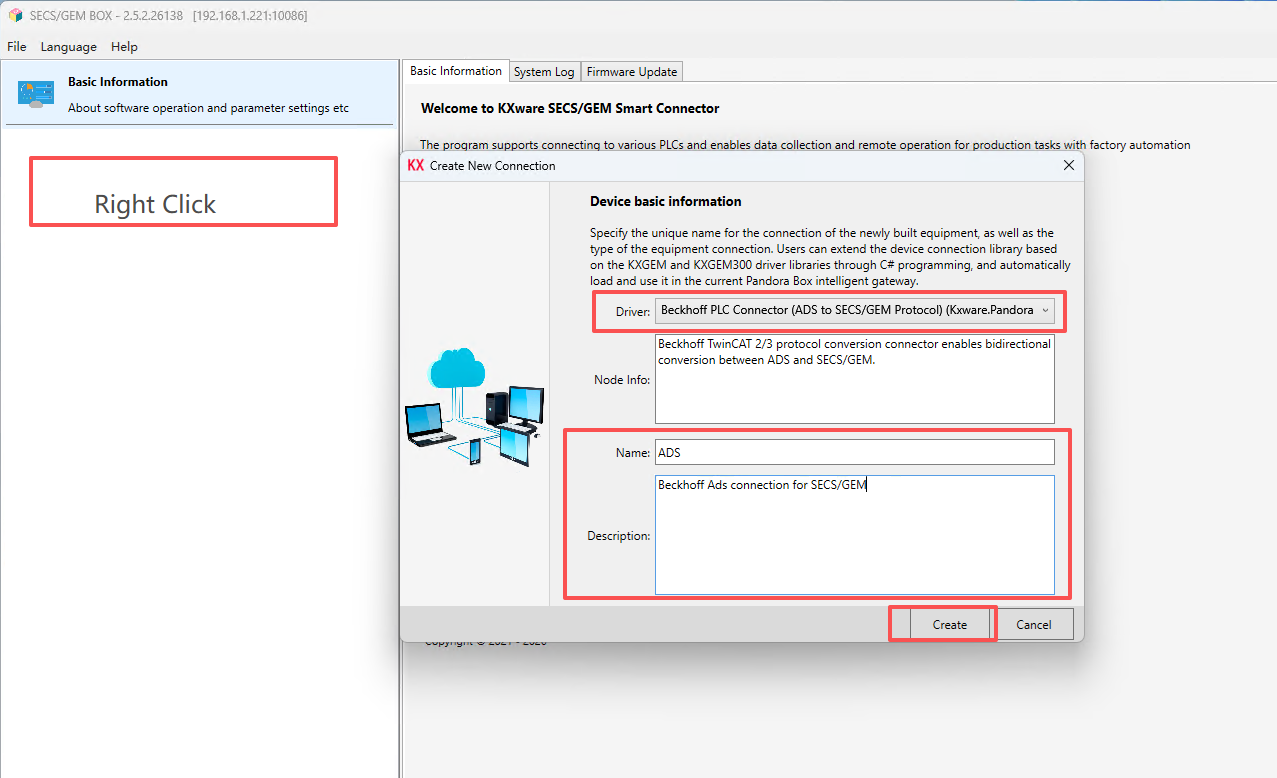
Right-click in the blank area on the left, and select Create a new connection (container) from the context menu.
1.3 Modify the container communication configuration
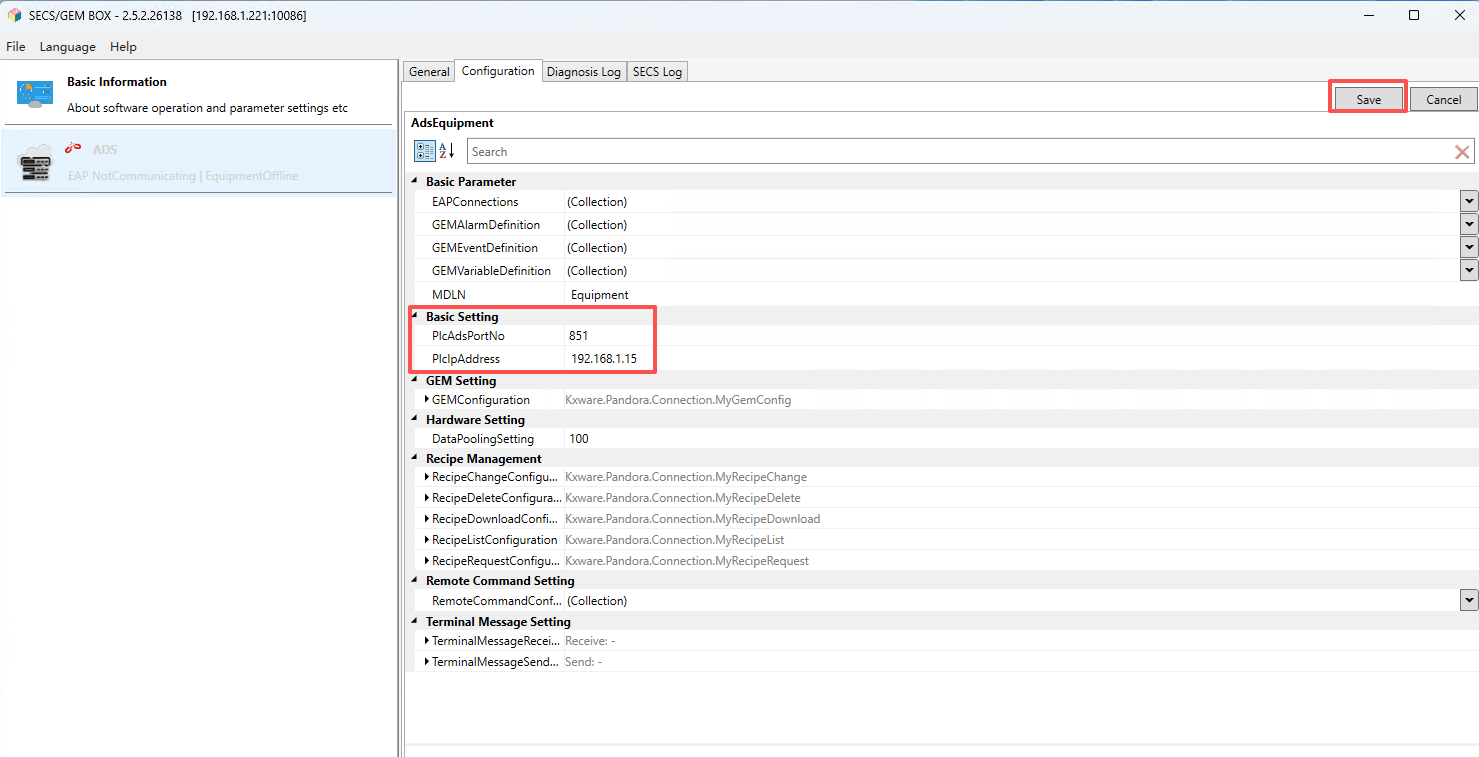
Edit the container configuration, change the ADS port number and the PLC IPv4 address (Note: This is not the TwinCAT PLC's AMS NetID, but the address connected to Pandora's LAN1 or LAN2), then click "Save".
2. Install the KxADSRouter service program on the TwinCAT PLC
Since Beckhoff has not yet officially released an ADS routing service program for the Linux platform, in order for the TwinCAT SECS/GEM service program on the Pandora Box to successfully access internal variables in the Beckhoff TwinCAT PLC (including Windows 7/8/9/10/11 and WinCE) via the ADS communication protocol, we need to pre-install the KXADSRouter service program on the Beckhoff TwinCAT PLC and configure it to start automatically at boot.
2.1 Steps for installing KxAdsRouter on the WinNT platform
Download the KxAdsRouter program for the WinNT platform (applicable to Windows 7/8/9/10/11 operating systems)
https://project.kxware.com/attachments/download/3640/KXAdsRouter_NT_1.3.0.26105.zipExtract the file
.zip file to the C:\TwinCAT\GEM\ directoryCreate Windows auto-start at boot.
Create a shortcut in the Windows Startup menu pointing to C:\TwinCAT\GEM\Kxware.AdsRouter.exe
2.2 Steps for installing KxAdsRouter on the WinCE platform
Download the KxAdsRouter program for the WinCE platform
https://project.kxware.com/attachments/download/3639/KXAdsRouter_CE_1.3.0.26105.zipUpload the file to the PLC
Access ftp://{PLC_IP_Address}
Copy the extracted KxAdsRouter folder to the PLC FTP folder
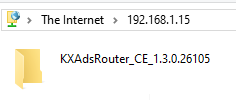
WinCE Remote Desktop Operation
Click the link below to download the WinCE Remote Desktop tool
https://project.kxware.com/attachments/download/3641/CERHOST.exeLog in to the WinCE Remote Desktop and open the StartMan menu
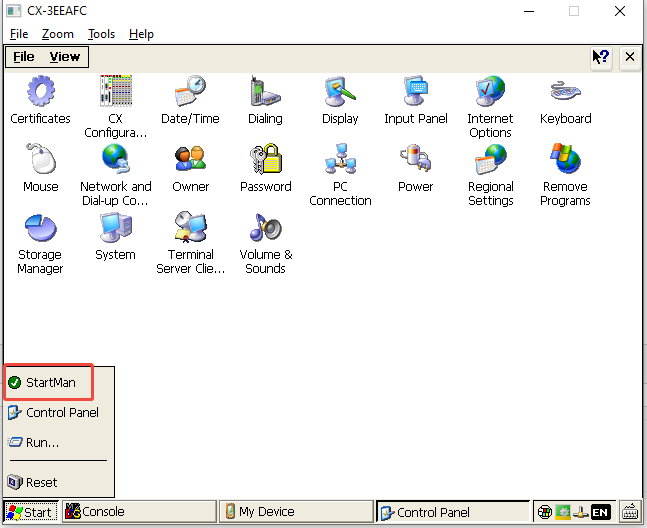
Create a new ads srv auto-start entry for boot
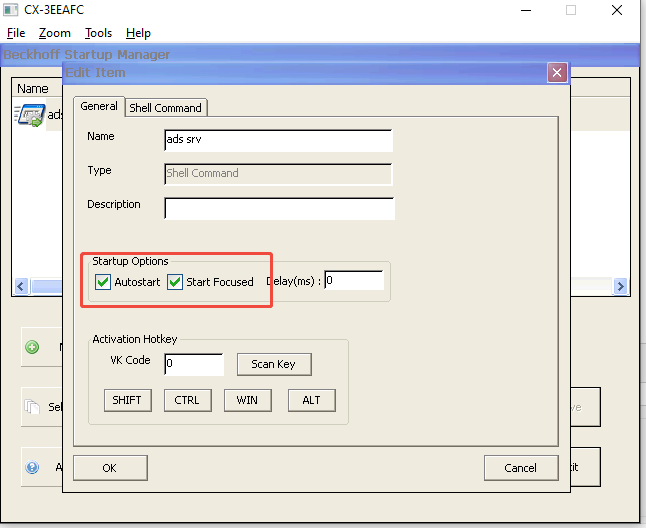
Enter the startup file path
\Hard Disk\FTP\KXAdsRouter_CE_1.3.0.26105\Kxware.AdsRouter.exe
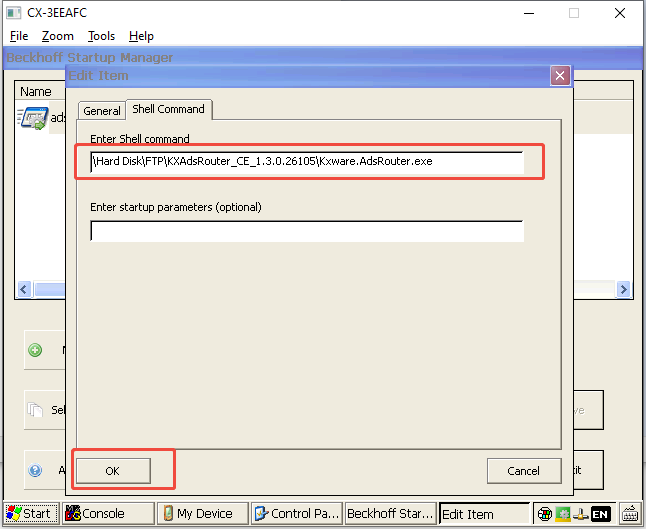
Save and restart the WinCE PLC
3. Edit Configuration
3.1 Edit Variable Configuration
In GEMVariableDefinition, click Add to add a parameter. In the parameter configuration area on the right, configure:VariableId (unique, cannot duplicate),VariableName (unique, cannot duplicate),Description,VariableType (SV/DV/EC),VariableUnit (optional),VariableMin,VariableMax,VariableDefault
,VariableFormat (for details, see...):https://project.kxware.com/projects/pandora/wiki/01-08-01_SECSGEM%E6%95%B0%E6%8D%AE%E7%B1%BB%E5%9E%8B%E5%AE%9A%E4%B9%89),Power-off saving(Persistent).
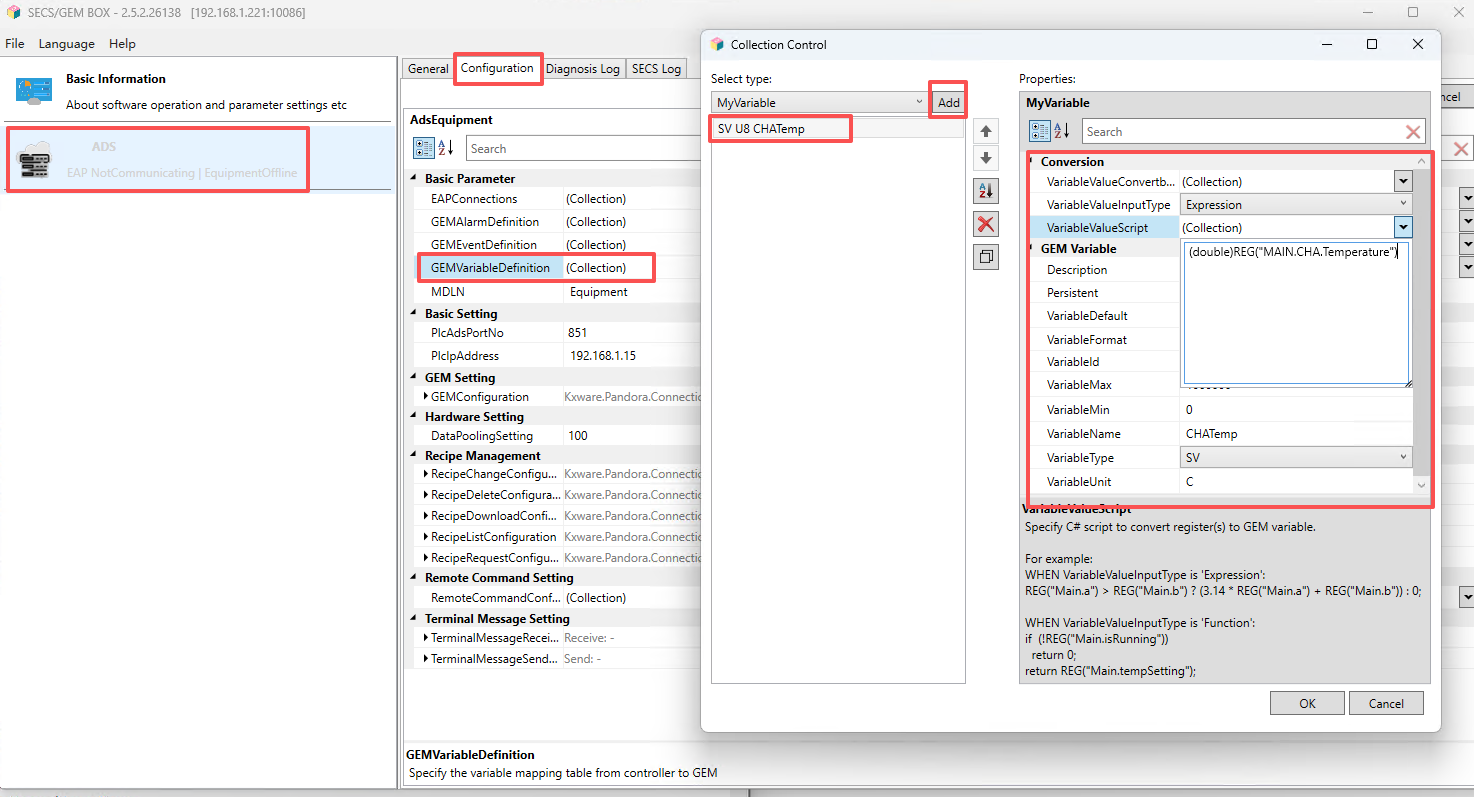
Fill in the parameter acquisition and conversion script. For example, if MAIN.CHA.Temperature corresponds to the temperature feedback value of Chamber A, then configure as follows according to VariableValueInputType:
VariableValueScript:
// if VariableValueInputType is Expression input:
(double)REG("MAIN.CHA.Temperature");

//if EventTriggerInputType is Function input:
return (double)REG("MAIN.CHA.Temperature");
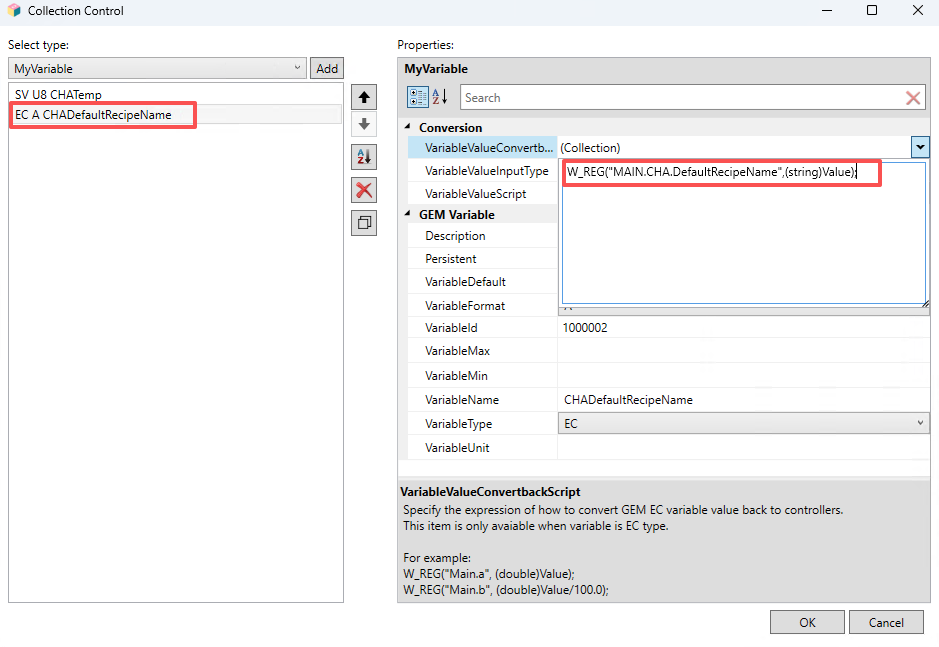
If the parameter type is EC, then a data conversion script needs to be configured:
VariableValueConvertbackScript:
W_REG("MAIN.CHA.DefaultRecipeName",(string)Value);
3.2 Edit Alarm Configuration
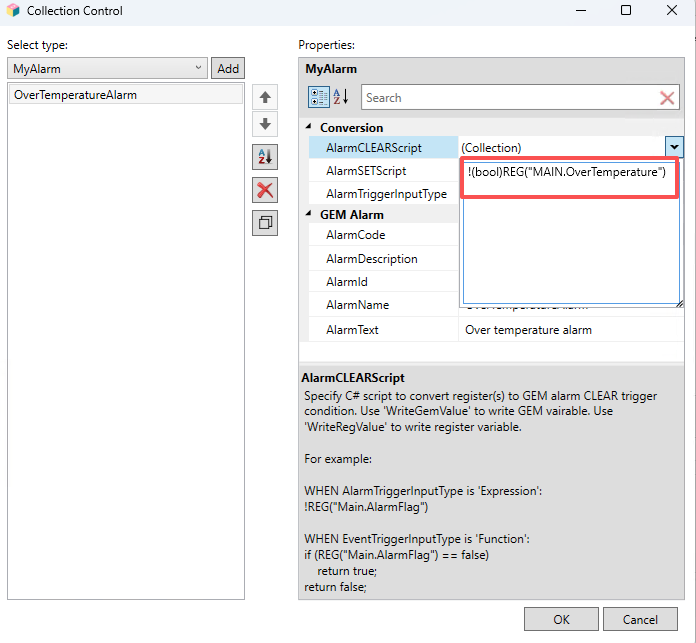
In GEMAlarmDefinition, click Add to create a new alarm. Then, in the alarm information configuration area on the right, set the following: AlarmCode, AlarmId (must be unique), AlarmDescription, AlarmName (must be unique), and AlarmText.
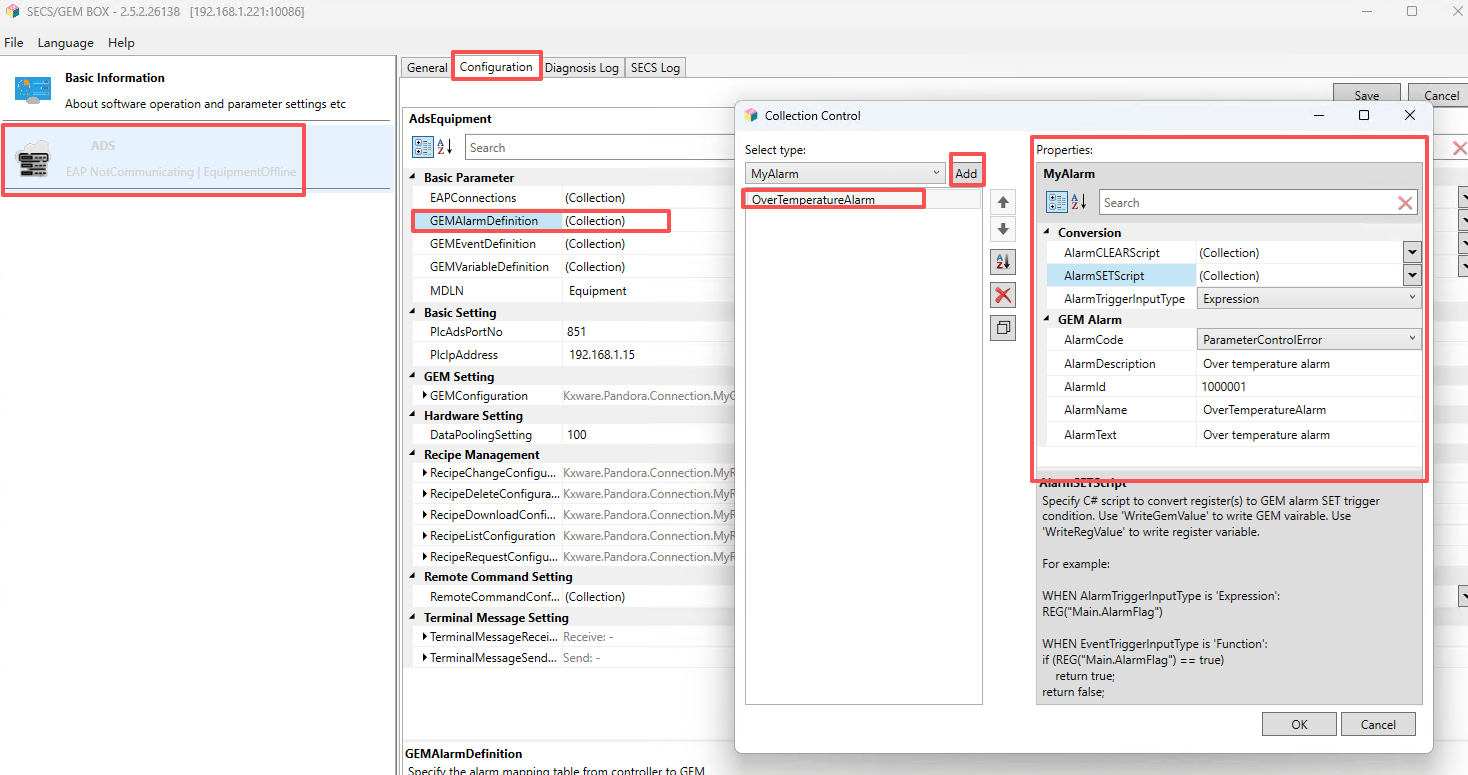
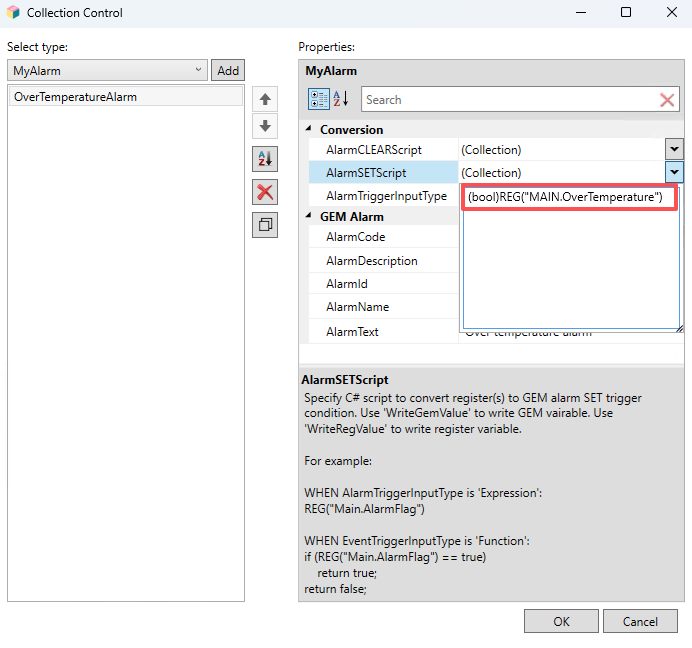
Fill in the alarm occurrence and clear scripts. For example, if MAIN.OverTemperature = true indicates that the alarm occurs, and false indicates that the alarm is cleared, then configure as follows according to the AlarmTriggerInputType:
AlarmSETScript:
// if AlarmTriggerInputType is Expression input:
(bool)REG("MAIN.OverTemperature")

//if AlarmTriggerInputType is Function input:
return (bool)REG("MAIN.OverTemperature");
AlarmCLEARScript:
// if AlarmTriggerInputType is Expression input:
!(bool)REG("MAIN.OverTemperature")

//if AlarmTriggerInputType is Function input:
return !(bool)REG("MAIN.OverTemperature");
3.3 Edit Event Configuration
In GEMEventDefinition, click Add to create a new event. Then, in the event information area on the right, set the following: EventId (must be unique), EventDescription, EventName (must be unique), and EventAssociatedVariableNames (optional).
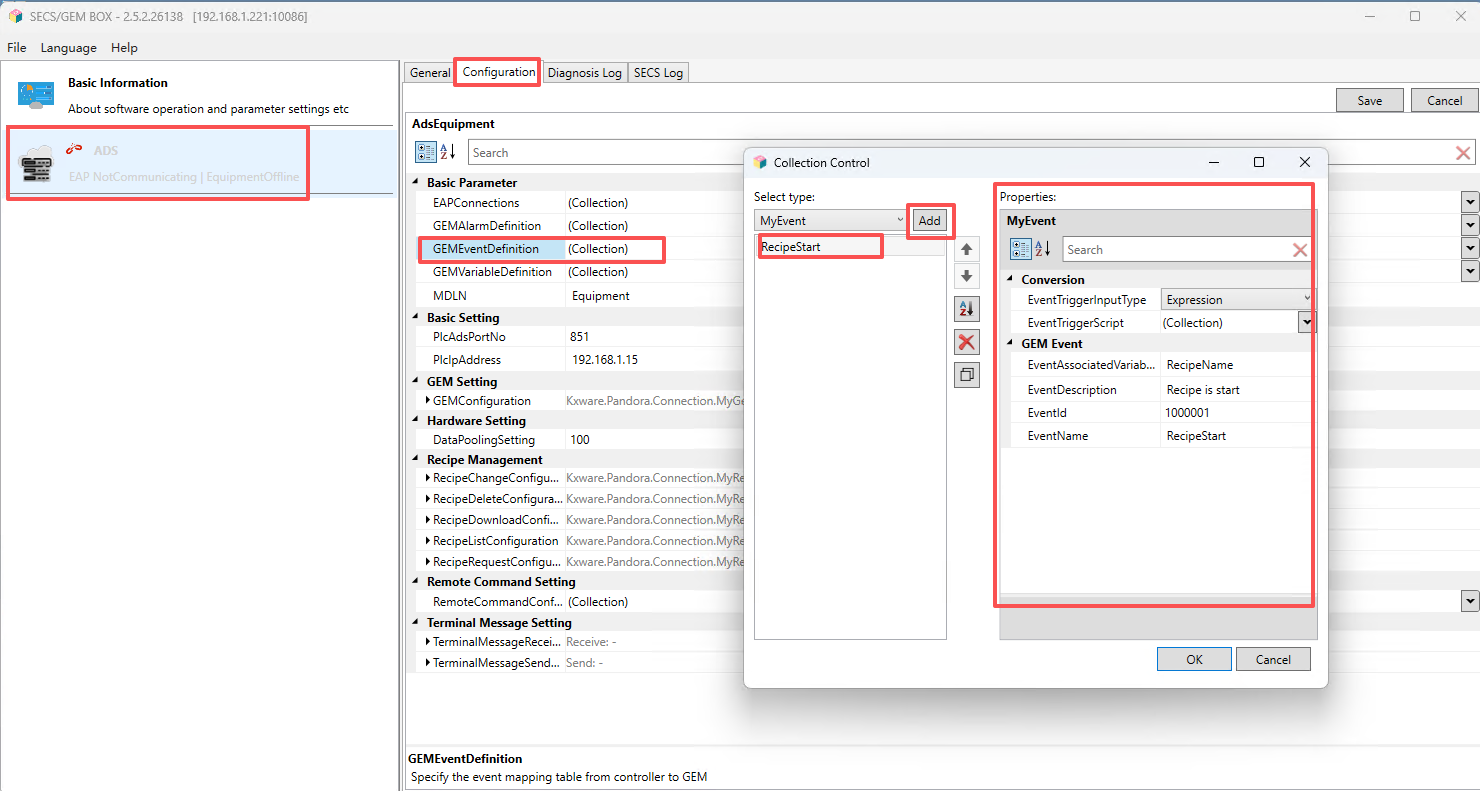
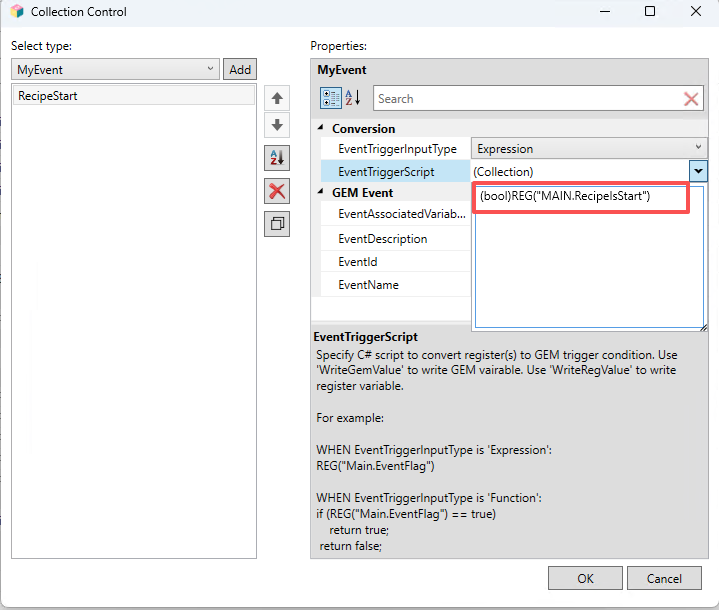
Fill in the script for event occurrence. For example, if MAIN.RecipeIsStart = true indicates that the event occurs, then configure as follows according to the EventTriggerInputType:
EventTriggerScript:
// if EventTriggerInputType is Expression input:
(bool)REG("MAIN.RecipeIsStart")

//if EventTriggerInputType is Function input:
return (bool)REG("MAIN.RecipeIsStart");